Whoscall - Caller ID & Block

Whoscall - Caller ID & Block
Category
Communication
| Technical Specification | Download | |
|---|---|---|
| Latest Updated | ||
| Latest Version | ||
| Developer | ||
| Operating system | Android, iOS | |
| Language | English | |
| Price | Free | |
| Available version | ||
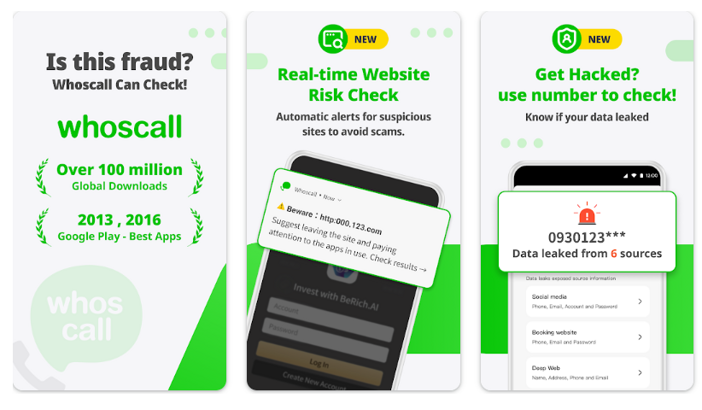
- Whoscall is an innovative Caller ID and blocking application designed to enhance your phone communication experience. By identifying incoming calls from unknown numbers, it empowers users to screen calls effectively, reducing unwanted disturbances. With a robust database of spam numbers, Whoscall enables seamless blocking of telemarketers and potential fraud calls, providing peace of mind. Additionally, its user-friendly interface ensures effortless navigation, making call management simple and efficient, thereby enhancing overall phone security and user satisfaction.
More Details
- Below are some of the notable features of the Whoscall app:
- Advanced Caller Identification: Utilizing an extensive global database, Whoscall provides real-time identification of incoming calls, enabling users to recognize unknown numbers immediately. This feature employs machine learning algorithms to continuously update and refine the caller database, ensuring precise detection of spam, telemarketers, and potential fraudsters.
- Customizable Call Blocking: Users can leverage Whoscall’s sophisticated blocking algorithms to create personalized blocklists based on specific criteria such as number patterns and user reports. This ensures that unwanted calls are effectively screened, enhancing the user’s communication experience and minimizing disturbances.
- User-Generated Reports: Whoscall fosters a community-driven approach by allowing users to report suspicious numbers. These reports are synthesized into actionable insights using natural language processing, facilitating the continuous improvement of the app’s filtering capabilities and helping to protect the broader user base from emerging threats.
- Smart Search Functionality: The app includes a lightning-fast search feature enabling users to actively look up and verify unknown numbers directly within the interface. With data sourced from local directories and user contributions, this feature enhances communication safety by empowering users with the information they need to make informed decisions about their calls.
Extra Details
- How to uninstall the Whoscall - Caller ID & Block? You can uninstall Whoscall - Caller ID & Block on your mobile device by following these steps: Locate setting icon on your phone. Tap Application manager or Apps Touch Whoscall - Caller ID & Block. Press uninstall.
How to install the application
How to Download the Whoscall - Caller ID & Block App
- Download the Whoscall - Caller ID & Block app by opening the Google Play Store
- From there, click on the search bar at the top of the screen
- Type in the name of the application and click on the app icon in the search menu
- Tap "Download" and wait for the app to install onto your mobile device
DISCLAIMER
- The above app is a mobile app that will not change any system settings on your phone.
- We provide links to the official Google Play Store and App Store listings.
- The trademarks and logos of all the merchants displayed on the website are the property of their respective owners. The website is not affiliated or associated with any of them.
- Our website and its content strictly comply with all the terms and conditions of Google Ads Advertising policies and Google Unwanted Software policy.
Steps to Uninstall android App
How to Uninstall the Whoscall - Caller ID & Block App
- If you no longer require the app, then you can delete it by first going to your phone settings
- Locate the Application Manager (App Manager)
- Find the Whoscall - Caller ID & Block app and then click “uninstall” to remove it from your device
Steps to Uninstall App on Apple devices
How to uninstall Whoscall - Caller ID & Block from your iOS device:
To delete the Whoscall - Caller ID & Block app, follow these instructions:
- Find the Whoscall - Caller ID & Block icon on your Home Screen or in the App Library.
- Tap and hold the icon until a menu shows up.
- Select Remove App from the options.
- Tap Delete App to confirm.
- Press the Home button or tap Done to finish.
Tips & Tricks
- Utilize the advanced caller identification feature to screen incoming calls, ensuring that you only engage with recognized contacts or reputable businesses. This function significantly reduces unwanted interruptions and potential scams.
- Take advantage of the blocking feature to customize your call preferences by adding specific numbers to your block list. This allows you to maintain control over your communication environment and avoid disturbances from telemarketers.
- Regularly update your contact list within the app to enhance the caller recognition capabilities. By adding frequently contacted numbers, you'll improve the accuracy of incoming call identification, leading to a more efficient calling experience.
- Use the app’s reporting tool to flag suspicious numbers, contributing to the community database. This not only protects your own user experience but also assists other users in avoiding potential fraud or harassment.
- Explore the analytics section to gain insights into your call patterns, such as call frequency and blocked attempts. Understanding your call behavior can help you make informed decisions about your communication habits and enhance your overall efficiency.
Popular Apps See more

Twitch
20.0.0 for Android

Watch TNT
8.7.0 for Android

Barclays
8.2.7 for Android

327.2.0.50.93 for Android

Newsmax TV & Web
5.0.11 for Android

eBay
6.155.0.1 for Android
Top Apps See more

CVS
24.4.12 for Android

Yahoo News
56.3 for Android

Crunchyroll
3.70.4 for Android

Kanopy
6.5.0 for Android

The NBC App
9.8.0 for Android

Sonos
16.1 for Android
Top New Social Apps See more

Nike App
24.32.1 for Android

Steam
3.8.0 for Android

459.1.0.42.84 for Android

Oculus
262.0.0.2.109 for Android

Wells Fargo Mobile
24.03.00.197 for Android

Amazon Music
24.6.1 for Android