Music Video Editor - inMelo

Music Video Editor - inMelo
Category
Video Players & Editors
| Technical Specification | Download | |
|---|---|---|
| Latest Updated | ||
| Latest Version | ||
| Developer | ||
| Operating system | Android, iOS | |
| Language | English | |
| Price | Free | |
| Available version | ||
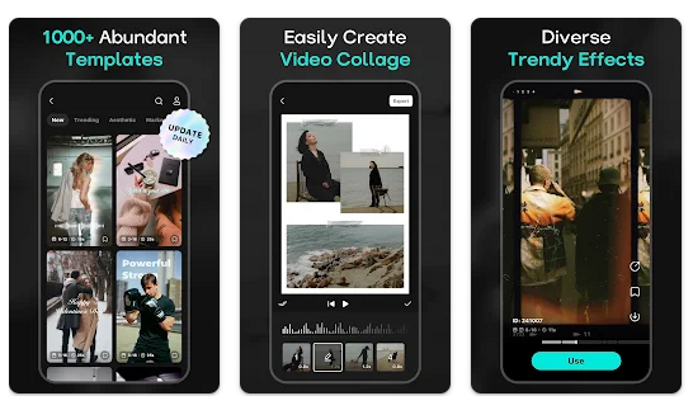
- inMelo is a cutting-edge music video editing application designed to empower users with intuitive tools for creating stunning music videos. By seamlessly merging audio tracks with high-quality visual effects, inMelo allows both beginners and professionals to produce captivating content effortlessly. Users can access a library of customizable templates, apply various filters, and easily adjust video settings. The app enhances creativity and saves time, making it the ideal choice for anyone looking to share their music vision with the world.
More Details
- Below are some of the notable features of the inMelo app:
- Seamless Synchronization: The app utilizes advanced *audio analysis algorithms* to automatically synchronize video clips with the underlying music track, ensuring that every beat is matched perfectly with the visual transitions. This feature enables users to create professional-quality music videos effortlessly, dramatically enhancing the rhythm and flow of the final product.
- AI-Powered Effects Engine: inMelo incorporates an artificial intelligence-driven effects engine that offers a vast library of dynamic visual effects tailored to match the mood and genre of the selected music. Users can intuitively apply these effects, which are intelligently recommended based on the audio analysis, to elevate their videos beyond standard editing tools.
- Multi-Track Editing: This feature allows users to layer multiple audio tracks, enabling the incorporation of *background vocals, instrumentals,* and sound effects. With a user-friendly interface, individuals can manipulate each track independently, promoting a richer and more diverse audio landscape within their music videos.
- Collaborative Sharing Platform: inMelo facilitates a robust *collaboration framework*, enabling users to share projects with friends or fellow creators. Through real-time editing capabilities and cloud-based storage, multiple users can contribute to the same music video project, enhancing creativity, and fostering a community of collaborative artists.
Extra Details
- How to uninstall the Music Video Editor - inMelo? You can uninstall Music Video Editor - inMelo on your mobile device by following these steps: Locate setting icon on your phone. Tap Application manager or Apps Touch Music Video Editor - inMelo. Press uninstall.
How to install the application
How to Download the Music Video Editor - inMelo App
- Download the Music Video Editor - inMelo app by opening the Google Play Store
- From there, click on the search bar at the top of the screen
- Type in the name of the application and click on the app icon in the search menu
- Tap "Download" and wait for the app to install onto your mobile device
DISCLAIMER
- The above app is a mobile app that will not change any system settings on your phone.
- We provide links to the official Google Play Store and App Store listings.
- The trademarks and logos of all the merchants displayed on the website are the property of their respective owners. The website is not affiliated or associated with any of them.
- Our website and its content strictly comply with all the terms and conditions of Google Ads Advertising policies and Google Unwanted Software policy.
Steps to Uninstall android App
How to Uninstall the Music Video Editor - inMelo App
- If you no longer require the app, then you can delete it by first going to your phone settings
- Locate the Application Manager (App Manager)
- Find the Music Video Editor - inMelo app and then click “uninstall” to remove it from your device
Steps to Uninstall App on Apple devices
How to uninstall Music Video Editor - inMelo from your iOS device:
To delete the Music Video Editor - inMelo app, follow these instructions:
- Find the Music Video Editor - inMelo icon on your Home Screen or in the App Library.
- Tap and hold the icon until a menu shows up.
- Select Remove App from the options.
- Tap Delete App to confirm.
- Press the Home button or tap Done to finish.
Tips & Tricks
- Utilize the Auto Beat Sync feature to effortlessly align your video clips with the rhythm of your chosen music track, creating a seamless viewing experience that captivates your audience.
- Take advantage of the Multi-Layer Editing capability to overlay text, images, and effects on your videos. This allows you to enhance storytelling and make your music videos more visually engaging.
- Explore the Color Grading tools to adjust the mood and atmosphere of your video. Fine-tuning colors can dramatically affect viewer perception and emotional engagement, helping your video stand out.
- Make use of the Template Gallery for inspiration and structure. By selecting from professionally designed templates, you can streamline your editing process while ensuring a polished final product.
- Share your projects directly to social media from within the app to maximize exposure. Simplifying the sharing process can help you reach a broader audience quickly and efficiently.
Popular Apps See more

Fashion Nova
2.0.18 for Android

Family Dollar
6.1.0 for Android

Yahoo News
56.3 for Android

CVS
24.4.12 for Android

Disney+
3.1.3-rc1 for Android

Scanner Radio
8.2 for Android
Top Apps See more

The Voice Official App on NBC
3.16 for Android

Nike App
24.32.1 for Android

GEICO Mobile
5.68.0 for Android

Canadian Tire
9.11.2 for Android

Afterpay
1.95.0 for Android

Xbox
2406.2.1 for Android


