Link to Windows
Link to Windows
Category
Productivity
| Technical Specification | Download | |
|---|---|---|
| Latest Updated | ||
| Latest Version | ||
| Developer | ||
| Operating system | Android, iOS | |
| Language | English | |
| Price | Free | |
| Available version | ||
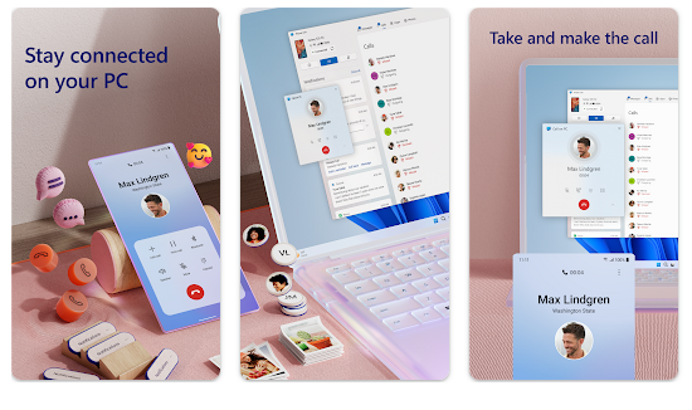
- Link to Windows is a powerful application designed to seamlessly integrate your Android device with Windows 10 and 11 PCs. By connecting your smartphone to your computer, users can receive notifications, access messages, and manage photos directly from their desktops. This enhances productivity by allowing users to respond to texts and utilize mobile apps without switching devices. With a user-friendly interface, Link to Windows ensures a smooth workflow, making it easier than ever to stay connected and organized in a multitasking environment.
More Details
- Below are some of the notable features of the Link to Windows app:
- Seamless Integration: Link to Windows facilitates a fluid connection between your Android device and Windows PC, enabling users to receive notifications, messages, and calls directly on their desktop environment. This feature eliminates the need to constantly switch between devices, enhancing productivity and ensuring that users remain connected irrespective of their physical device.
- File Transfer Capabilities: Users can easily drag and drop files between their Android device and Windows PC, utilizing file synchronization technologies to ensure that documents, images, and videos are available on both devices. This functionality not only saves time but also ensures that users have quick access to necessary files, enhancing workflow efficiency.
- App Mirroring: The app provides real-time app streaming, allowing users to access and interact with their mobile applications directly from their Windows desktop. This capability is particularly useful for individuals who prefer using larger screens for gaming, social media, or productivity apps, thereby offering an enriched user experience.
- Clipboard Synchronization: With clipboard sharing capabilities, users can effortlessly copy text on their Android device and paste it on their Windows PC and vice versa. This feature streamlines multitasking and allows for a seamless transition of information between devices, making data handling significantly more efficient.
Extra Details
- How to uninstall the Link to Windows? You can uninstall Link to Windows on your mobile device by following these steps: Locate setting icon on your phone. Tap Application manager or Apps Touch Link to Windows. Press uninstall.
How to install the application
How to Download the Link to Windows App
- Download the Link to Windows app by opening the Google Play Store
- From there, click on the search bar at the top of the screen
- Type in the name of the application and click on the app icon in the search menu
- Tap "Download" and wait for the app to install onto your mobile device
DISCLAIMER
- The above app is a mobile app that will not change any system settings on your phone.
- We provide links to the official Google Play Store and App Store listings.
- The trademarks and logos of all the merchants displayed on the website are the property of their respective owners. The website is not affiliated or associated with any of them.
- Our website and its content strictly comply with all the terms and conditions of Google Ads Advertising policies and Google Unwanted Software policy.
Steps to Uninstall android App
How to Uninstall the Link to Windows App
- If you no longer require the app, then you can delete it by first going to your phone settings
- Locate the Application Manager (App Manager)
- Find the Link to Windows app and then click “uninstall” to remove it from your device
Steps to Uninstall App on Apple devices
How to uninstall Link to Windows from your iOS device:
To delete the Link to Windows app, follow these instructions:
- Find the Link to Windows icon on your Home Screen or in the App Library.
- Tap and hold the icon until a menu shows up.
- Select Remove App from the options.
- Tap Delete App to confirm.
- Press the Home button or tap Done to finish.
Tips & Tricks
- Utilize the seamless file transfer feature to effortlessly move documents, images, and videos between your smartphone and PC. Simply drag and drop files for quick sharing, enhancing your productivity and simplifying collaboration.
- Leverage the app's notification mirroring to stay updated on your phone alerts directly from your PC. This prevents distractions and helps you manage your time efficiently, allowing you to focus on tasks without constantly checking your phone.
- Explore the screen mirroring function to extend your mobile experience onto your computer. This is particularly useful for presentations or gaming, as it allows for larger visuals and easier navigation using your keyboard and mouse.
- Take advantage of the app's app launching capability, which lets you run mobile applications from your PC. This saves time by allowing you to access your favorite apps conveniently without switching devices, offering a unified experience across platforms.
- Customize your settings to enable an optimized connection speed for smoother performance. Adjusting these preferences ensures that you get the most out of the app, reducing lag and enhancing your overall experience while multitasking between devices.
Popular Apps See more

Dunkin’
11.1.0.341 for Android

Arlo
4.12.5_28655 for Android

Popeyes App
7.7.3 for Android

Taco Bell
8.45.2 for Android

Google Opinion Rewards
2024032401 for Android

ALDI UK
8.7.0.171 for Android
Top Apps See more

Pizza Hut App
3.2.18 for Android

Chipotle
10.32.1 for Android

Internet Speed Test
5.4.2 for Android

Google Lens
1.16.231127009 for Android

Cricut Design Space
5.56.1 for Android

GasBuddy
700.97.23138 for Android
Top New Social Apps See more

CashApp
4.9 for Android

Smart Home Manager
2.2404.356 for Android

Expedia App
2024.23.0 for Android

rakuten
6.32.1 for Android

DoorDash - Driver
7.70.7 for Android

USPS MOBILE
5.10.0 for Android